Welcome to chilipie-kiosk
Looks like this is your first boot!
This document lists some things you can do to customize your kiosk. You'll need to plug in a keyboard for this initial setup, but after that, it's perfectly fine to leave the kiosk running without any peripherals plugged in.
Setting the URL
Press F11 to exit the full screen mode, and Ctrl + L to focus the location bar. Navigate away! Once done, press F11 again to re-enter full screen mode.
Chromium is configured to remember the URL where you left off (and all logins, etc), so this might be all the configuration you need to do!
System configuration
You can access the raspi-config utility by pressing Ctrl + Alt + F2. With it, you can do things like:
- Join a WiFi network
- Change your keyboard layout
- Change the system timezone
- Enable SSH access (it's disabled by default for security reasons)
- Change the password (see above)
Pressing Ctrl + Alt + F1 takes you back to Chromium.
Automating things
There's a few commonly useful snippets already on the crontab, such as:
- Rebooting the Pi every night at 3 AM. If you run resource intensive pages on your dashboard, the Pi can eventually start to slow down. A nightly reboot keeps it rested and refreshed! This is enabled by default.
- Turning the display off for the night. This helps save energy when there's no-one there to look at your dashboard. Sometimes also useful for reasons of vanity, when bright displays in the middle of a dark office would look ridiculous. Do make sure your display/television comes back on, however: especially older TV's sometimes won't know to automatically turn back on when the HDMI signal comes back on. In those cases, you may have luck with CEC signals, but also you may not. If nothing else works, you can always just blank the display.
- Automatically reloading the active page every hour. If the page you're displaying doesn't automatically update itself, this is effectively the same as hitting
Ctrl + Revery hour. Very crude. Very effective. - Cycling between open tabs every 5 minutes. Same as above, but for
Ctrl + Tab. Note that if you use both at the same time, you can combine them, to send the reload command just before sending the tab cycle command. This causes the pages to reload while they're in the background, so the user never sees it happening.
Press Ctrl + Alt + F3 to get to a virtual terminal, use crontab -e to check these out, enable the ones you want, or customize them to your heart's content.
Again, pressing Ctrl + Alt + F1 takes you back to Chromium.
Customizing Chromium
Because you're running a fully-featured Chromium, you can customize it further by installing browser extensions. For example:
- Tampermonkey can be useful for injecting custom JS or CSS to a page you're displaying.
- Ignore X-Frame headers can help you if you need to
<iframe>a site that doesn't want to be framed.
Finally, further tweaks can be made by changing the Chromium command line switches in ~/.xsession. For example:
--unsafely-treat-insecure-origin-as-secure=http://shady.example.com,http://another.example.com --user-data-dir=/home/pi/.config/chromiumAdding these options will allow you to mix secure (i.e. HTTPS) origins with insecure ones (you need to specifically white-list them). Sometimes you need stuff like this to pull together all the bits and pieces of your dashboard from different origins. We're not saying you should. But you can.
Controlling the kiosk remotely
Sometimes you need to do basic remote adjustments, like changing the URL that's displayed.
- If you need a lot of flexibility, you can install VNC to get a full remote desktop
- If you just need to set the URL, you can SSH over (not enabled by default; see above), and e.g. run something like:
export DISPLAY=:0; xdotool key F11 sleep 1 key ctrl+l sleep 1 type 'https://google.com'; xdotool sleep 1 key KP_Enter; xdotool key F11. Very crude. Very effective.
Username and password
If you need to login to a shell, the default username and password are pi and raspberry, as is tradition for Raspberry Pi. The pi user also has sudo access.
Adjusting your resolution
If the display auto-detection fails and chooses a funky default resolution for you, there's a few things you can do to try and fix that.
Rotating your screen
Press Ctrl + Alt + F3 to get to a virtual terminal, and use your favorite editor to open /boot/config.txt (remember to use sudo). Add a line to the end of the file:
display_rotate=0to disable rotationdisplay_rotate=1to rotate 90° clockwisedisplay_rotate=2to rotate 180°display_rotate=3to rotate 90° counter-clockwise
Save the file, and sudo reboot.
Note that on the Pi 4, you'll need to disable the dtoverlay=vc4-fkms-v3d line in /boot/config.txt for this to work. But then that may cause other issues. This is hopefully fixed in a future Raspbian release.
Exotic screens may require a bit more fiddling. See issues #41 and #58 for ideas.
Replacing the boot graphics
The image that's displayed while the kiosk is starting can be changed by just replacing ~/background.png.
To change the default chilipie-kiosk boot graphics to a nice Windoge one, for example, try wget -O background.png https://bit.ly/2Q4GF1t.
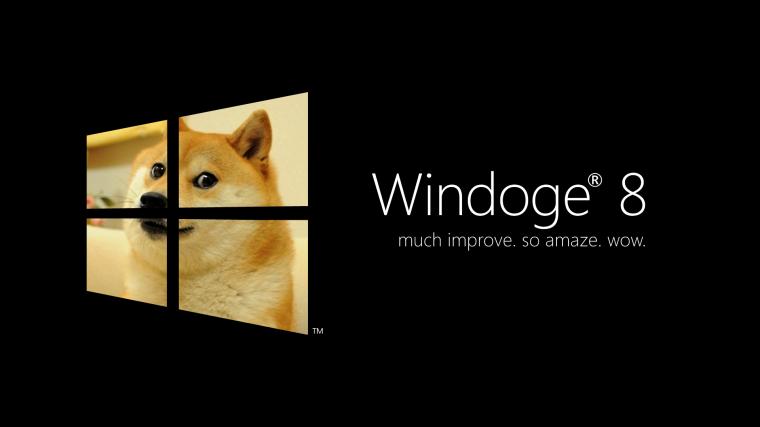
Increasing boot show delay
By default, the browser window is hidden for a few seconds after boot, to give the page time to load. You can increase (or decrease) this delay in ~/.xsession.
Using a touch screen
If your kiosk is interactive, and you're using a touch screen as a display, you may need to calibrate it. Press Ctrl + Alt + F3 to get to a virtual terminal, and type:
DISPLAY=:0 xinput_calibrator